
 Documentation
Create and configure a vault
Before you start
Select the approved manager entity and the wallet authorized for the target vault or operating record. Confirm the network, supported asset identities, and saved roles or dependencies required by the task.
Follow the task
-
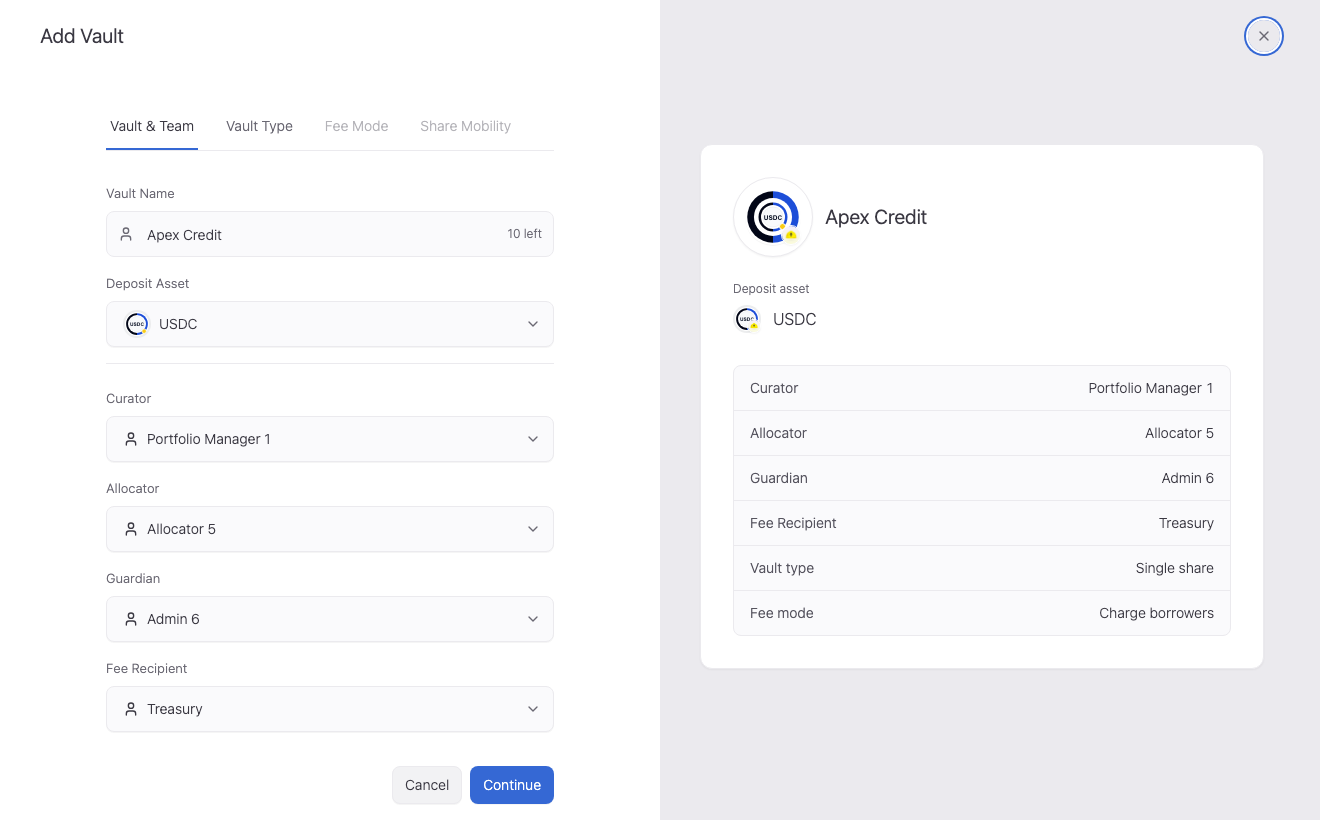
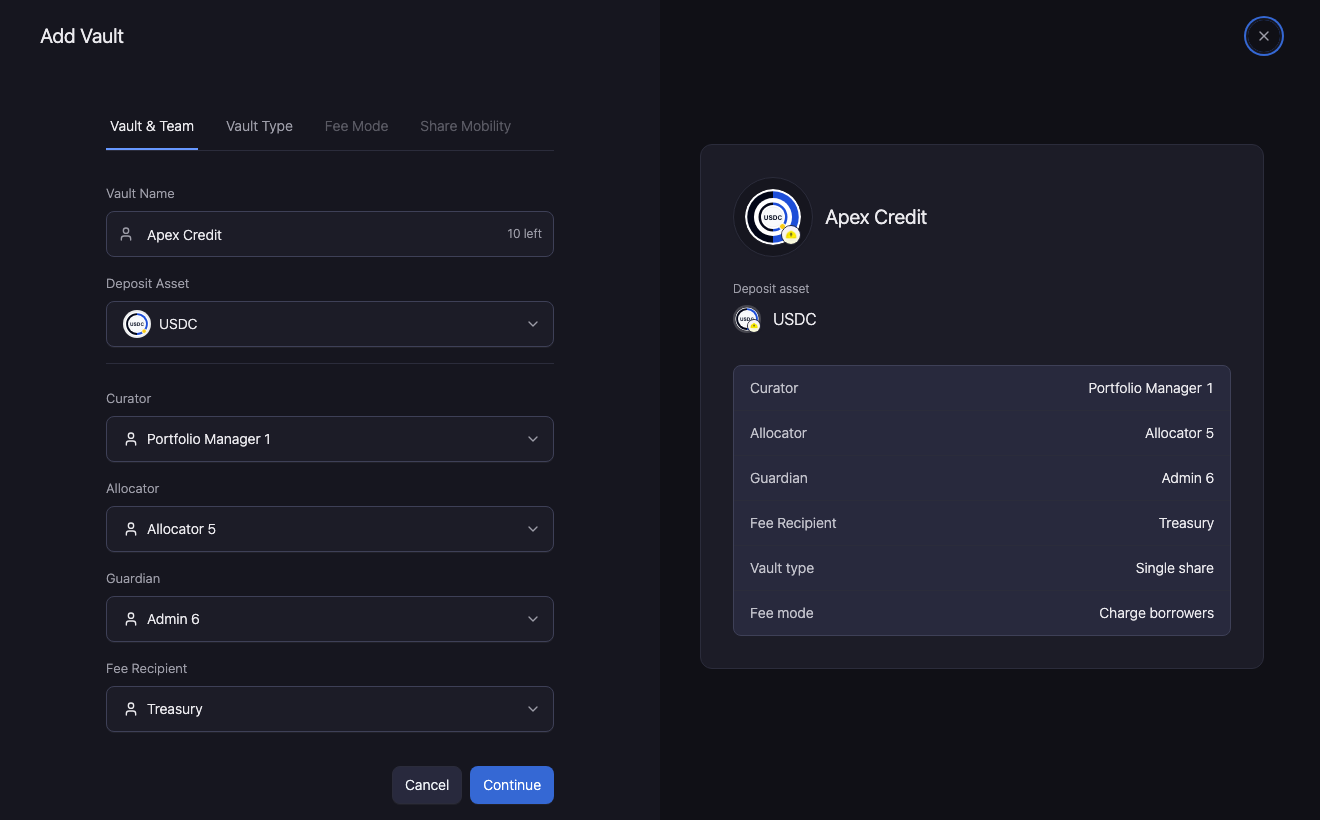
Open Add Vault. Complete Vault & Team with the deposit asset and saved operating roles.
-
Choose Vault Type, then Fee Mode and Share Mobility. Review the selected paths and required inputs before signing.
-
Reopen the deployed vault. Configure the operating policies and credit facilities before inviting deposits.
Related settings
Use the detailed procedure for the task's field meanings, conditional paths, and operating constraints.
The Asset Manager pages and controls lists the current application locations, registered input controls, and supported action inputs. Read-only values are distinguished from editable forms.
Check the outcome
After a change, use its operation or transaction reference to find the saved record. Reload before relying on new values.
A pending approval or signature shows progress. Check the action-specific result described in the procedure.
Resolve a blocked task
Check the active account, entity, network, authority, required saved dependencies, validation, and data freshness. If an operation is already pending, inspect it before submitting another action.
Use Troubleshooting for missing records, expired items, stale sources, rejected wallet steps, and delayed saved state.