
Skip to content

Submission Status

Open the relevant record

Open Asset Submissions in Asset Issuer. Start with contract identity and the supported pricing path, then review the issuer context and manager handoff.

Submission Status

Find the submitted asset and inspect the current review state, manager handoff, and any requested amendment. Reopen the saved submission after completion; editing metadata is not the same as accepting the asset.

Controls for this task
Preferred Asset Manager
Choose the manager receiving the handoff.
Sets manager review route.
Approved Asset Managers
Select allowed manager entities.
Restricts which managers can continue setup.
Pricing Path
Choose signed NAV or live-feed pricing.
Sets the valuation route for the asset request.
Cadence
Choose expected cadence for live-feed submissions.
Sets feed freshness expectation.
Asset Symbol
Enter token or asset symbol.
Sets display symbol and review row symbol.
Asset Name
Enter full asset name.
Sets display name and submission identity.
Asset Token Address
Enter token contract address.
Sets token identity.
Pricing Policy Notes
Enter valuation policy notes.
Adds pricing context to the submission.
Asset Logo
Upload PNG, JPEG, or WebP logo where supported.
Adds asset branding context.
Submission Context
Describe freshness, fallback handling, or operational context.
Adds issuer context for review.
Oracle Provider
Choose an approved oracle/feed provider.
Sets live-feed validation path.
Oracle Address
Enter feed or oracle address.
Links submission to a feed source.
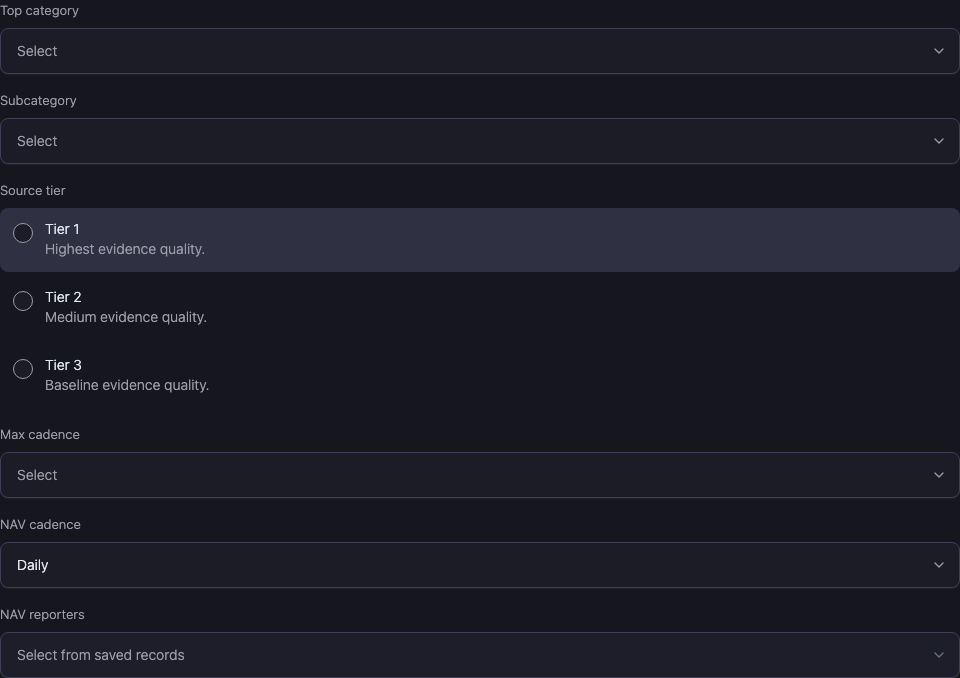
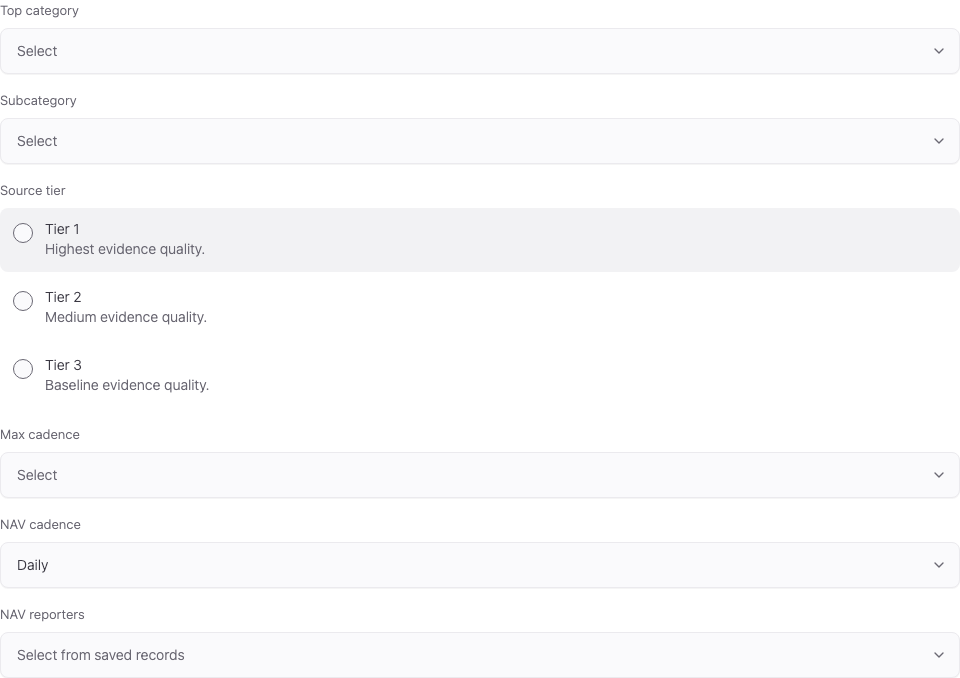
Submission Status: product controls for the selected task.
Submission Status: selected product record ยท Product interface with sample records. Select the image to open it at full size.

Complete and verify

For a change, review the active inputs, selected object, recipient where relevant, and required authority. Complete the supported approval or signing action, then reopen the saved record and reload.

For a read-only review, check current freshness and the relevant accepted or completed state. An unavailable value is not zero; a pending operation is not a completed change.

Continue with the workspace guide or troubleshooting.